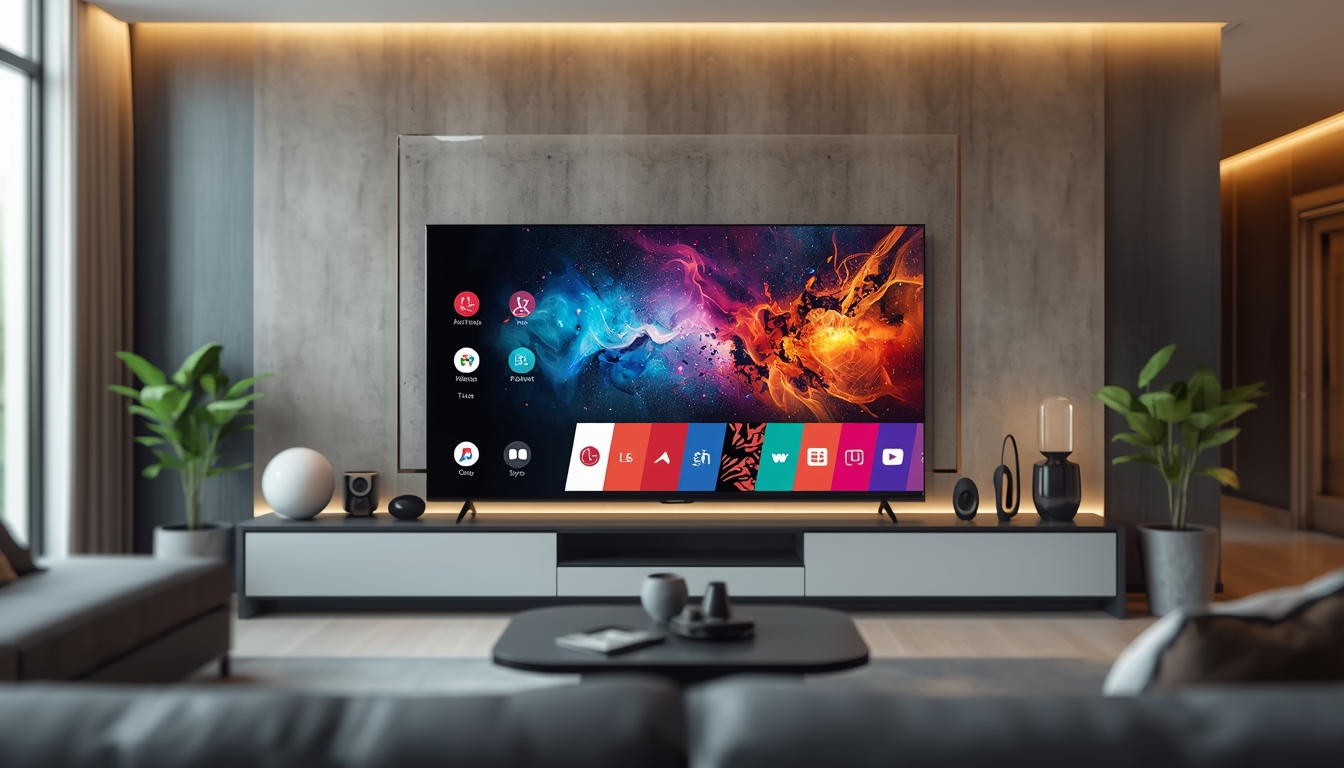

Unlock a World of Entertainment: Your Ultimate Guide to LG Smart TV IPTV
Your LG Smart TV is more than just a screen; it’s a gateway to a universe of content. With its stunning display and intuitive WebOS interface, you already have a premium viewing experience. But what if you could unlock thousands of live channels, movies, and series from around the globe, all without a cable box? This is the power of setting up LG Smart TV IPTV, and this guide will show you exactly how to do it.
What is IPTV and Why Is It Perfect for Your LG TV?
IPTV stands for Internet Protocol Television. Instead of receiving broadcast signals through a traditional satellite dish or cable, IPTV delivers television content directly through your internet connection. For LG Smart TV owners, this means:
- Massive Channel Selection: Access channels from different countries and genres that aren’t available through standard providers.
- Video On-Demand (VOD): Enjoy vast libraries of movies and TV shows anytime you want, similar to popular streaming services but often more extensive.
- Cost-Effective: IPTV services can be a more affordable alternative to traditional cable packages, offering more content for a lower price.
- Seamless Integration: The entire experience runs through an app on your TV, eliminating the need for extra hardware and simplifying your entertainment setup.
Getting Started: The Key Components You Need
Before diving into the setup, it’s essential to understand the basic building blocks. Your LG Smart TV runs on a sophisticated operating system, and to get IPTV working, you’ll need a player application and a content source. Grasping the relationship between WebOS, SS IPTV, Smart IPTV app, upload playlist, m3u link is the first step to success.
- WebOS: This is the operating system on your LG Smart TV. It’s where you’ll find the LG Content Store to download the necessary apps.
- IPTV App: This is the player that will organize and stream your channels. Popular choices include SS IPTV and the Smart IPTV App. These apps don’t provide content themselves; they are simply the vehicle.
- M3U Playlist: This is a file or a URL provided by your IPTV subscription service. It contains the list of all the channels and VOD content you have access to.
Top IPTV Player Apps for LG Smart TVs
You can find several IPTV players in the LG Content Store. Two of the most reliable and widely-used options are SS IPTV and the Smart IPTV App. Each has a slightly different setup process, but both are excellent choices for streaming. It’s crucial to explore the differences between a WebOS, SS IPTV, Smart IPTV app, upload playlist, m3u link to see which interface and setup method you prefer. Many users find the Smart IPTV app’s MAC address-based setup to be very straightforward once you get the hang of it.
Step-by-Step Guide to Setting Up IPTV
Ready to transform your viewing experience? Follow these simple steps.
- Step 1: Choose and Install an App: Navigate to the LG Content Store on your TV. Search for “SS IPTV” or “Smart IPTV” and install your chosen application.
- Step 2: Get Your Credentials: Once you subscribe to an IPTV service, they will provide you with an M3U playlist link or file. This is your key to the content.
- Step 3: Upload Your Playlist: This is the most crucial step.
- For SS IPTV: You can generate a temporary code within the app and use it on the official SS IPTV website to upload your M3U link.
- For Smart IPTV: Open the app and note the “MAC Address” displayed on the screen. Go to the Smart IPTV upload portal on your computer or phone, enter your TV’s MAC address and your M3U link, and submit it.
- Step 4: Relaunch and Enjoy: Close and reopen the app on your LG TV. It will now load all the channels and content from your playlist. This entire process is the core of configuring your LG Smart TV IPTV setup.
Troubleshooting Common Problems
Sometimes you might encounter a hiccup. If channels aren’t loading or you see an error, don’t worry. The issue is often simple to fix.
- Check Your Internet: The most common cause of buffering is a slow or unstable internet connection. Run a speed test and ensure you have a strong signal.
- Verify Your M3U Link: Double-check that you have copied and pasted the M3U link correctly. A single typo will prevent it from working.
- Restart Everything: A simple restart of your TV and your internet router can solve many temporary glitches.
- Contact Your Provider: If the problem persists, your IPTV provider is the best source of support. They can confirm if the service is active and if your playlist is correct. Many issues related to a faulty WebOS, SS IPTV, Smart IPTV app, upload playlist, m3u link can be quickly resolved by your provider.
By following this guide, you can easily turn your LG Smart TV into an ultimate entertainment hub. The setup is straightforward, and the result is a nearly limitless supply of content tailored to your tastes. If you’re ready to explore a new world of television, getting started with LG Smart TV IPTV is the best decision you can make for your home entertainment system.