
Table of Contents
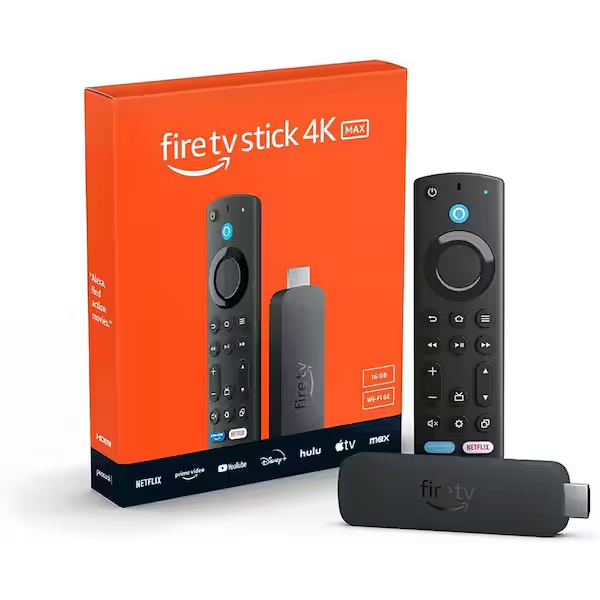
If you just bought a new Amazon Firestick and want to start watching live TV, movies, and sports, you’re in the right place. Firestick is one of the best devices to Install IPTV on Firestick because it’s cheap, fast, portable, and works perfectly with IPTV apps.
The only catch? Most IPTV apps aren’t in the official Amazon App Store — so you’ll need to sideload them.
How to Install IPTV on Firestick: A Step-by-Step Guide
Don’t worry. I’ll walk you through every step like you’re sitting next to me.
Let’s get started.
Why Firestick Is Perfect for IPTV
The Firestick is powerful enough for smooth 1080p and 4K streaming, supports thousands of apps, and is easy to tweak. For IPTV users, it’s the ideal option — especially if you’re doing a Firestick jailbreak or sideloading streaming apps.
Prerequisites (Very Important!)
Before installing any IPTV app, you need to enable Firestick’s developer settings.
Enable Developer Options
- Go to Settings (top-right of your Firestick home screen).
- Scroll to My Fire TV.
- Go to About.
- Highlight Fire TV Stick and click it 7 times.
- You’ll see a message: “Developer Options Enabled.”
Allow Install Unknown Apps
- Back inside My Fire TV
- Open Developer Options
- Select Install Unknown Apps
- Turn it ON for any app you will use (Downloader, browser, etc.)
Now your Firestick is ready for IPTV setup.
Step 1: Install the Downloader App
Downloader is the orange app used to sideload apps that aren’t in the Amazon Store.
- From your Firestick home screen, select Find
- Choose Search
- Type Downloader
- Install the orange icon app by AFTVnews
Open it once it installs — we’ll use it next.
Step 2: Install an IPTV Player (IPTV Smarters)
Your Firestick doesn’t come with any IPTV app, so we’re going to install IPTV Smarters Pro, one of the easiest players for beginners.
- Open Downloader
- Select the URL box
- Type the following code: 12345 (placeholder — replace with your real code later)
- Hit Go
- The IPTV Smarters file will download
- Click Install
- Click Open
You now have the IPTV player — but it’s still empty.
Step 3: The Most Important Part — Get an IPTV Subscription
This is the part beginners get confused about.
IPTV Smarters is just a player.
It does NOT include channels.
It’s just a shell.
To watch anything, you need a playlist or IPTV service subscription.
And because Firestick users often struggle with cheap services, buffering, or freezing channels, it’s important to choose a provider optimized for Fire TV devices.
⭐ Recommended for Firestick Users: Mate IPTV
For buffer-free 4K streaming, fast zapping, and access to 10,000+ channels, I recommend using Mate IPTV.
It’s optimized specifically for Firestick users and works perfectly with IPTV Smarters or any other player.
👉 Check out Mate IPTV Plans here.
This is the part where most users finally get the smooth, stable experience they expected.
Step 4: Logging Into the IPTV App
Once you’ve purchased a Mate IPTV subscription, you’ll receive:
- Username
- Password
- Portal/Server URL
Now do this:
- Open IPTV Smarters Pro
- Choose Login with Xtreme Codes API
- Enter your Username, Password, and Server URL
- Click Add User
- The app will load your channels, movies, and series
You’re now ready to watch everything.
Troubleshooting & FAQ
Is IPTV Legal?
Using IPTV apps like IPTV Smarters is 100% legal.
The legality depends on the content source, not the app.
Mate IPTV operates professionally and securely.
Why is my stream buffering?
Buffering usually happens because of:
- Weak Wi-Fi
- Overloaded server (cheap providers)
- Slow Firestick
- Poor-quality links
To fix it:
- Restart your Firestick
- Switch to 5GHz Wi-Fi
- Use an Ethernet adapter
- Change the streaming source
If you’re still buffering, it’s probably the provider.
Switching to Mate IPTV usually fixes this immediately.
Is a VPN required?
Not required, but can improve privacy and reduce ISP throttling.
Does this work on Firestick Lite / 4K / 4K Max?
Yes. All Firestick models support IPTV apps.
Can I use another player?
Of course — Tivimate, XCIPTV, and OTT Navigator all work great.
But IPTV Smarters is easiest for beginners.
Final Words
If you follow the steps above, you’ll have a fully working IPTV setup on your Firestick in under 10 minutes.
This guide works for beginners, seniors, and anyone doing a simple Firestick jailbreak to enjoy smoother streaming.
To get the best experience, always pair your player with a strong, stable provider like Mate IPTV.